Labels and Descriptions
Labels and Descriptions basically help users to identify and categorize their confidential data. Let’s explore them in details:
Labels
Labels in SharePass are a versatile organizational tool designed to help you categorize and manage your secrets efficiently. They consist of two components: a name and a color. You can create or remove labels from the small gear button:
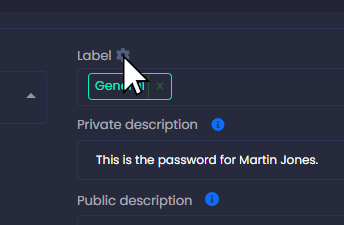
Here’s how they work:
Name: You can assign a descriptive name to each label. This name should reflect the category or purpose of the label. For example, you might create labels like “Personal,” “Work,” “Finances,” or “Project A.”
Color: Each label is associated with a color, which makes it visually distinguishable. Colors are a quick way to identify and sort secrets at a glance.
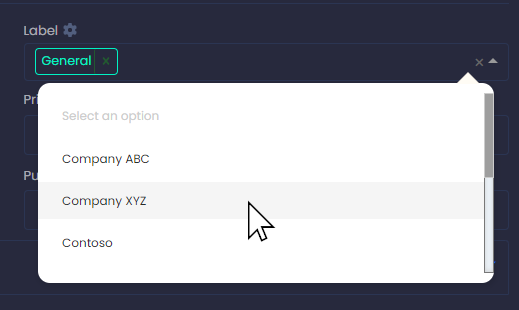
How Labels Work:
After creating labels, you can assign them to your secrets during the secret creation process or afterward in your secret list.
Labels are customizable, so you can create as many as you need to suit your organization and data management needs.
When you view your secret list, you’ll see labels displayed alongside your secrets, making it easy to identify and filter them based on their categories.
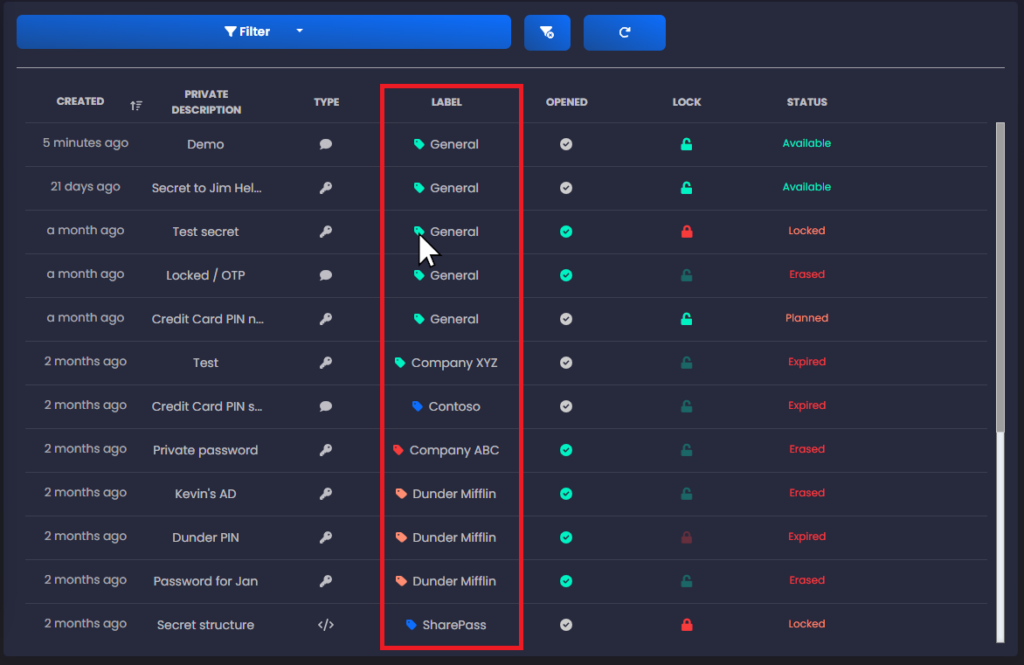
Labels play a crucial role in organizing your secrets, especially when you have a large number of them. They simplify the process of finding and managing your secrets effectively.
Descriptions
Descriptions in SharePass are brief text notes that you can add to your secrets. Unlike labels, which are primarily for categorization, descriptions serve as additional information or reminders related to a specific secret. Here’s how they work:
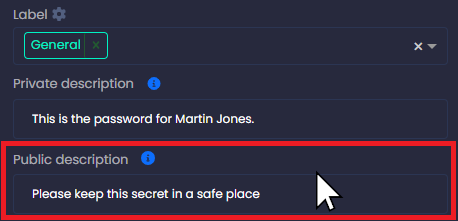
Private Description: This is a note created by you, the sender, during the secret creation process. It’s for your reference and can include any details you find relevant. For example, you might use it to add context or instructions related to the secret.
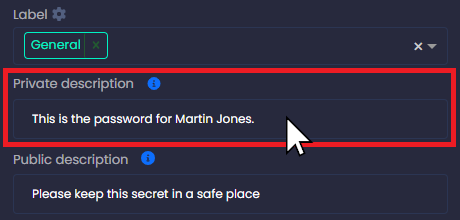
Public Description: This description is visible to the recipient when they access the secret. It’s a message or note that you want to share with the recipient along with the secret content. Public descriptions can provide additional context or instructions to the recipient.
Use Cases for Labels and Descriptions
Enhanced Organization: Labels help you categorize secrets, making it easier to locate specific information quickly.
Instructions: Public descriptions can include instructions for the recipient, such as how to use the secret or when it expires.
Context: Private descriptions can serve as reminders or provide context about why the secret was created.
Clear Communication: Public descriptions help ensure that recipients understand the purpose of the shared secret.
By utilizing labels and descriptions in SharePass, you can efficiently manage and communicate information securely while keeping your data well-organized and easily accessible.